How to Fix Wuthering Waves Pull History Issues: Missing Records, Import Errors, and Recovery Tips | Wuthering Waves Resource & Companion App | WuWa Tracker
How to Fix Wuthering Waves Pull History Issues: Missing Records, Import Errors, and Recovery Tips
9 min read
W wuwatracker.com
How to Fix Wuthering Waves Pull History Issues: Missing Records, Import Errors, and Recovery Tips
W wuwatracker.com
9 min read
As the leading pull-tracking website for Wuthering Waves, we've encountered a multitude of reasons as to why your pull history does not show up in our site or in the game. This article covers the common issues, diagnosis & troubleshooting steps, and an in-depth walkthrough on how to resolve these common issues.
But before we discuss that, we need to understand how Wuthering Waves stores your pull history.
How does the in-game Pull History page work?
Your pull history is stored on the Kuro Games servers and are retrieved every time you open your in-game history.
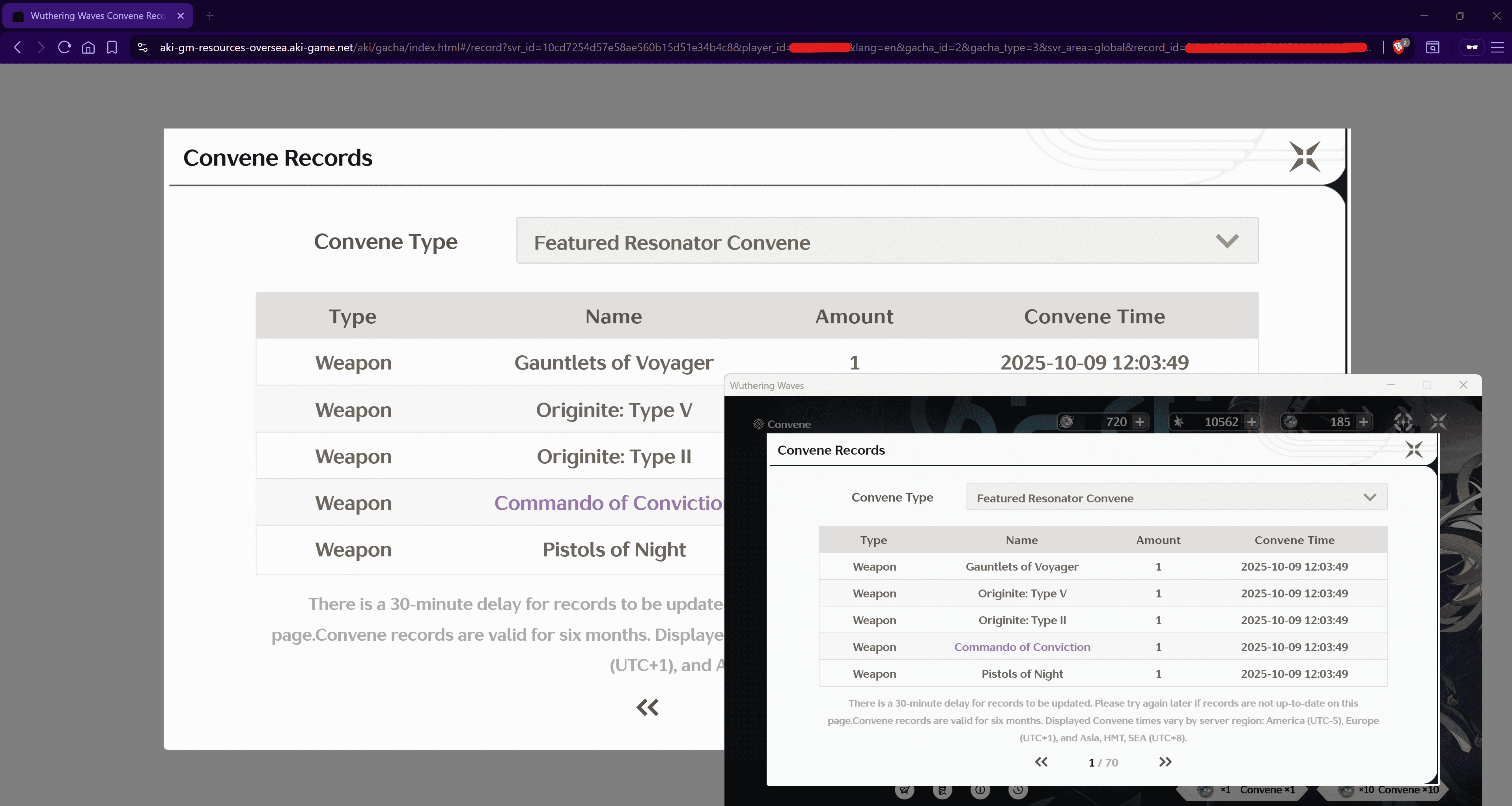
The in-game history window is actually a Webview, allowing the game to reuse the pull history user interface on all their platforms. In layman's terms, they simply open a web browser window and shows your history that way.
The web browser window is in charge of retrieving your pull history from the Kuro Games servers and displaying it on your webview window.
Convene URLs Are Just Web Pages
When you use any of our import tools, we retrieve the Convene URL needed to display your in-game pull history. It's simply the web page URL with some information needed to differentiate between users. It includes information like:
player UID
game server ID
record ID
For example, here is an example Convene URL with sensitive details REDACTED:
In order to save server resources, the game servers cache that data and reuse the data when users request for their pull history over a certain period.
In simpler terms, the game will show you a snapshot of your history for a certain amount of time before refreshing your pull history - and consequently, your Convene URL.
That's why you need to re-import your pulls when your pull history refreshes in-game. Websites like WuWa Tracker are only capable of seeing the same things you see in your pull history.
That is why the pull history window explicitly says the following:
There is a 30-minute delay for records to be updated. Please try again later if records are not up-to-date on this page.
The Official Wuthering Waves Pull History Retention Policy
Now, we need to understand why you may be unable to see pulls beyond the previous 6 months. We'll also understand how WuWa Tracker solves this big issue.
At the bottom of a pull history page, you can see this important disclaimer:
Convene records are valid for six months.
This means that any pull history beyond the previous 6 months cannot be viewed through the in-game history.
How WuWa Tracker Solves This Issue
When you import using any of our import tutorials, we borrow your Convene URL and save a copy of your history in our cloud database. This means that, as long as you've used our site in the past, you'll be able to recover your old pull history - despite the records being older than 6 months.
Furthermore, WuWa Tracker enables users to create manual backups of their data through their Data settings. We recommend you to create a manual backup of your data every now & then and upload it to a separate device or cloud service.
Recovering your old pulls through our cloud database or via a file is also as simple as importing. If you're signed in with an account via the Connections Settings, we automatically recover your pulls when you import your history via any import tutorial.
For manual backups, you can refer to our v4 Migration Guide that covers multiple recovery pathways to keep your pull history synced on your device.
Common Issues While Accessing Pull History
Now that we have the proper context on how pulls are stored in the game history and used by WuWa Tracker to maintain a cloud-synchronized record of your pull history, let's troubleshoot some common issues faced by our users while importing or using the site.
In-game Pull History Says "Network Error, Please try again later"
The Convene URL might be flagged by your internet service provider (ISP) or anti-virus as malicious.
First, try disabling your anti-virus before opening your Wuthering Waves pull history. Or if you want more fine-grained control, add the following domains/origins to your whitelist:
If that didn't work, it could be a block from your ISP. You can try using another network provider to open your pull history (like your mobile phone's hotspot).
If that doesn't solve the issue, you can try using Cloudflare Warp, a client to encrypt your traffic through Cloudflare's network.
Fun Fact: When our site was flagged & blocked in the Philippines for a period of time, Cloudflare Warp saved our users, enabling them to access the site and bypass the network provider's block. Credits to user @thankyouforparty for this tip.
Import tutorial shows an error "The gacha records server returned an error"
This means that WuWa Tracker attempted to view your pull history web page, but the Kuro Games server returned an error.
The error tooltip should have a link to open your Convene URL in another tab. Try to click that and confirm that Network error, please try again is shown.
If it shows that, it usually means that your Convene URL has already expired.
To fix this, you need to open your in-game history and ensure you can see your data FIRST before retrieving an updated Convene URL by following one of our import tutorials.
Windows Auto Import Script Errors
We've had a lot of reports from Windows users while using our Powershell script or even the manual import method, this section covers the most common issues.
The term 'Invoke-WebRequest' is not recognized as the name of a cmdlet
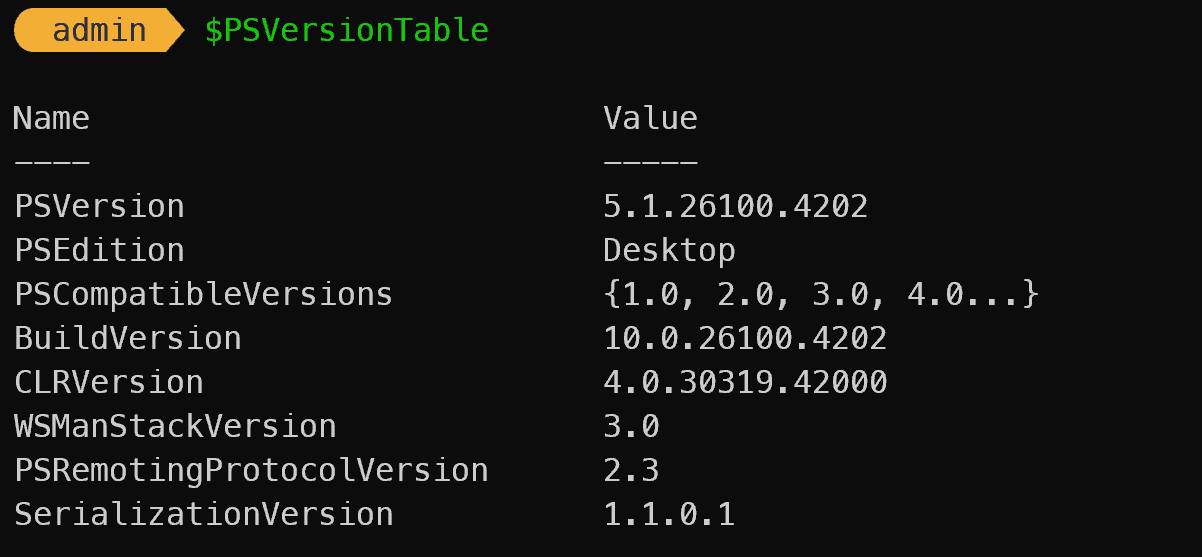
You might be using an outdated PowerShell version. You need to ensure PowerShell's PSVersion is equal to 3 or above by running $PSVersionTable.
In order to update your PowerShell version, you can use winget if you're using a modern Windows installation.
Run the following command:
winget upgrade Microsoft.PowerShell
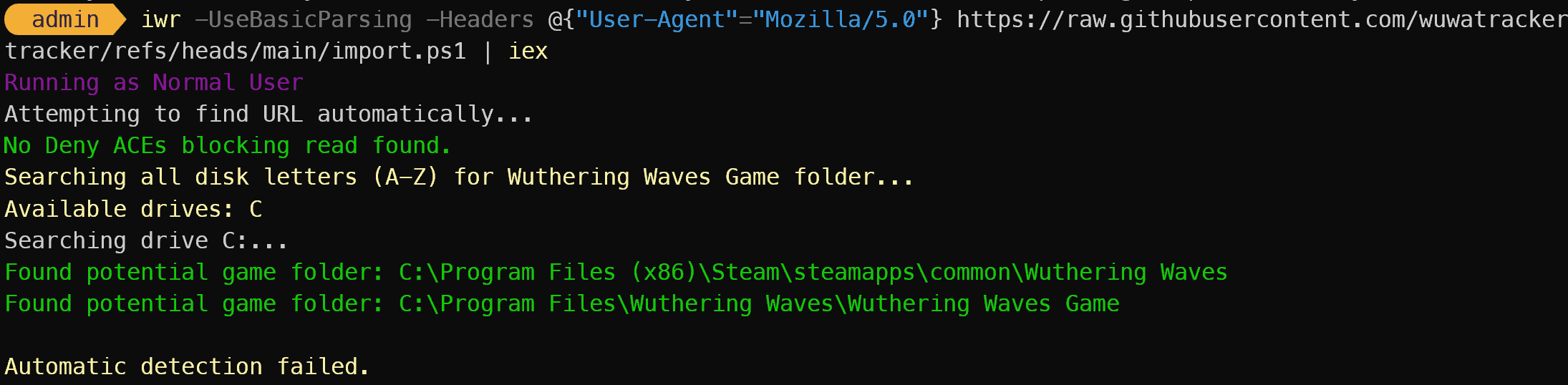
Windows Powershell Script says "Automatic detection failed."
This means that we are unable to locate your Client.log file or the Convene URL inside it.
Please check if your Client.log file is updated and found in common installation paths like:
If your game isn't installed in any of those locations or in the ones found in our full script, you can try searching your filesystem for Client.log and using our Manual Import method instead.
This is slightly inconvenient, so if you want to use the automatic method, you should reinstall the game with the default file paths.
Third-Party Apps like Cheats, Mods, Tweaks, Configs, Language Mods, Russifier, et cetera.
A lot of these third-party programs or custom configs disable logging for optimization or potentially malicious reasons.
WuWa Tracker does NOT condone the use of these third-party apps in conjunction with our site as they disrupt the import process.
We personally recommend you to uninstall those programs and do a clean reinstall of the game before importing your data since we can't guarantee compatibility with these third-party software or configs. Or alternatively, if you don't want to uninstall the game on your current device with your existing third-party modifications, you can also try importing on a device with Wuthering Waves that doesn't have any third-party modifications.
By proceeding with the troubleshooting steps related to attempting to fix it, you understand that you're doing it AT YOUR OWN RISK and that we are NOT liable for any damages to your account while trying to resolve import issues stemming from using third-party software.
Checking Engine.ini Logging Permissions
A lot of these third-party software disable the game's logging capabilities, including the logging capability for the Convene URL.
To re-enable it, check your game's Engine.ini file found in your game's installation directory like:
Open the file with Notepad or another text-editor and check if there is a global=none or Global=off line under the [Core.log] settings (use CTRL+F to check).
If it's there:
Close your game or ensure it's closed.
Remove that settings by deleting the line with global=none or similar.
Save the file.
Relaunch the game and follow our import tutorial again.
Then, check if your Client.log updated and contains your Convene URL (by searching for https://aki-gm-resources-oversea.aki-game) and ensure the timestamp of the Convene URL text line is updated.
Checking Logs Folder & Client.log Permissions
Sometimes, these third-party software disables user & application access to the logs folder or Client.log file.
Our Powershell script attempts to relaunch with higher permissions to re-enable reading the files, but if that doesn't solve it, you can check the permissions manually like so:
Right click on the Client.log file and open the "Properties"
Navigate to the "Security" tab
Check the permissions for each group and click on "Edit..." and allow the "Read" and "Modify" permissions for your user and your applications
Click on "Apply" to save the changes
Now, open your in-game history and import using the automatic script
None of the Above Worked!
Unfortunately, those are the common issues our users have faced, so if your game still doesn't update the Client.log file, we recommended doing a clean reinstall of the game using the default installation folders.
Then, uninstall any third-party software, tweaks, or configs you installed in the past before launching your game.
iOS Tutorial Can't Find JSON
When following our iOS tutorial and installing the CA Certificate, make sure to download it using the Safari browser.
Still need help?
If none of the above worked, you can join our Discord Server and ask for help from our staff or other WuWa Tracker users.
We recommend you search for your problem first before asking around or raising a ticket.
If you manage to solve your issue and think it would be a great addition to this article, then please let us know!